XCADEY APP:How do I calibrate my power meter using the APP?
1.Connect the power meter
Open the XCADEY APP and ensure the power meter is successfully connected.
2.Maintain a Stationary State
Before calibration, ensure the bike is unloaded and stationary—do not pedal or shake the bike.
3.Click the “Calibration” button
Go to the power meter connection page and click “Calibration” to start the automatic calibration process.
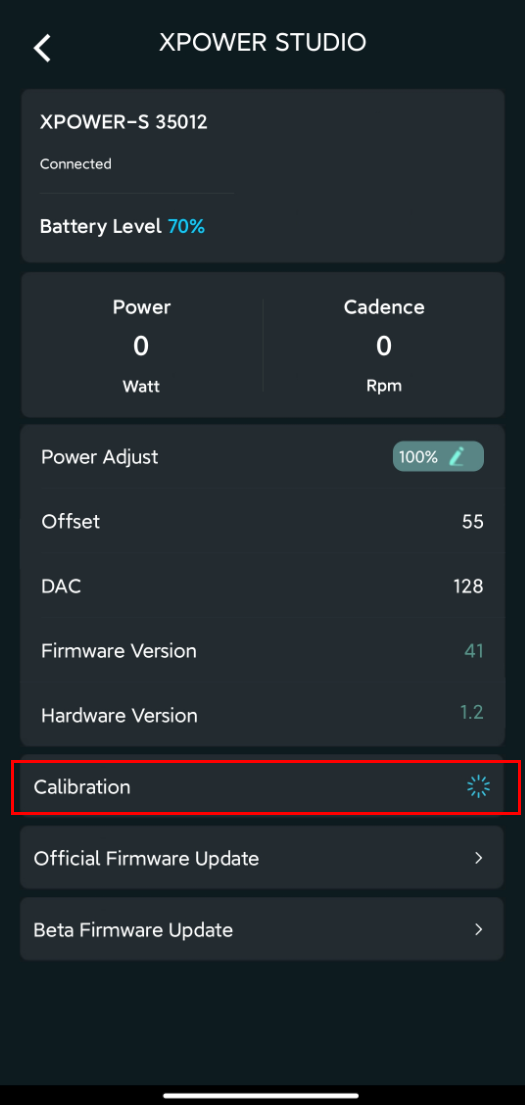
Calibration methods for different types of power meters:
(1)Power Meter Sipder
Keep the entire bicycle unloaded and stationary, and do not pedal. Wait for the calibration to complete.
(2)Power Meter Single-sided
Keep the crank at a 90° angle perpendicular to the ground, with the left crank facing up and the right crank facing down. Ensure the bike remains stationary.
(3)Power Meter Dual-sided
Keep the cranks at a 90° angle perpendicular to the ground, with the left crank facing up and the right crank facing down.
Calibrate the left and right power meters separately. In the APP, select the left and right devices in sequence for individual calibration.
After calibrating both sides, ensure “Calibration Successful” is displayed for both.
4.Wait for the completion prompt
The calibration process usually takes a few seconds, and the APP will display the message”Calibration successful” after completion.
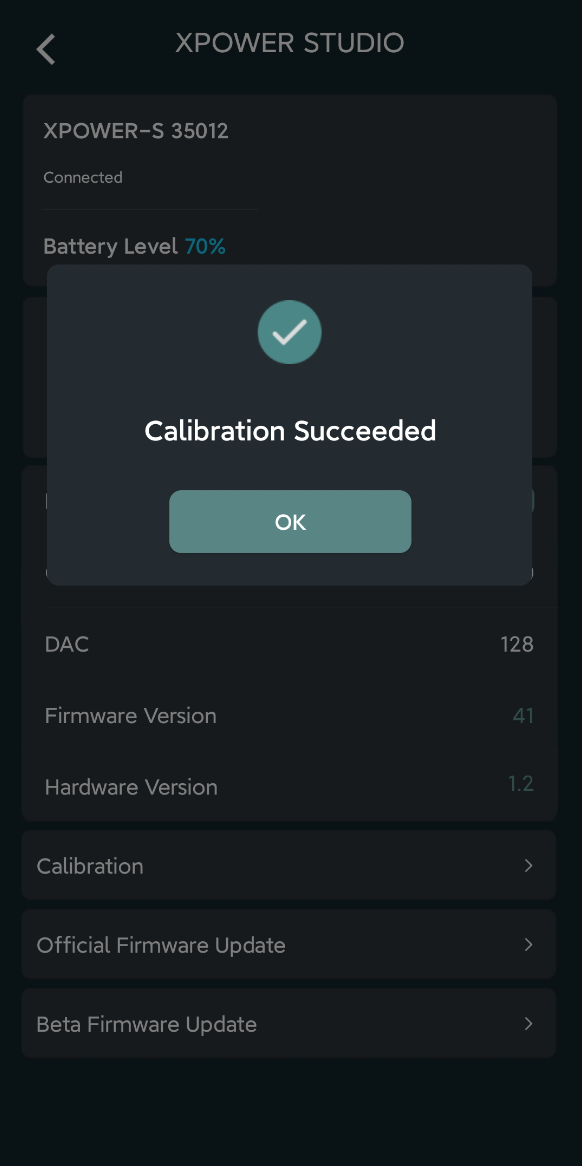
I’m having trouble with my left-sided powermeter. I’ve tried these steps and the green light remains and the calibration on the app just “spins”, never receiving the Calibration Successful statement. Please advise.
You can contact our After-Sales Service:info@xcadey.com