POWER METER: How to solve the DFU mode issue?
When the power meter enters DFU mode, please try to recover it as follows:
Method 1: Quick recovery
Connect the power meter with the charging cable and charge for about 5 seconds, then unplug the cable.
If the LED on the power meter turns off, it means the device has returned to normal.
If the above method does not work, please proceed to method 2.
Method 2: Restore via the APP
Different models of power meters have different solutions.
Please choose the corresponding operation steps according to your device type:
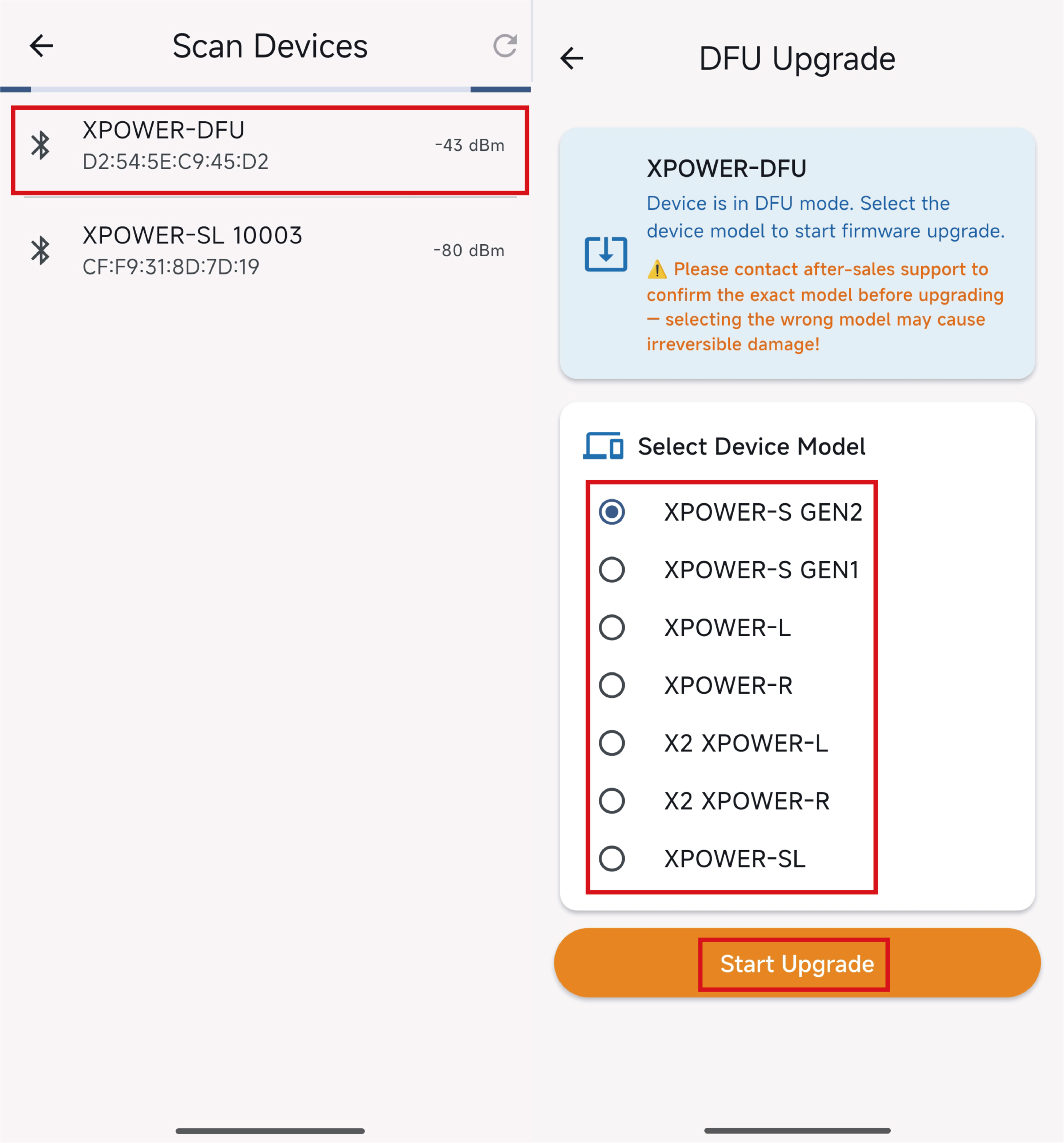
1.Power Meter First Generation (XPOWER GEN1)
① Enter the XCADEY APP
② Connect the DFU device
③ Select XPOWER GEN1 to upgrade
2.Power Meter Second Generation (XPOWER GEN2)
① Enter the XCADEY APP
② Connect the DFU device
③ Select XPOWER GEN2 to upgrade
3.Power Meter Single-side Crank (XPOWER-L/XPOWER-R)
① Enter the XCADEY APP
② Connect the DFU device
③ Select XPOWER-L/XPOWER-R to upgrade
4.Power Meter Dual-Side Crank (2XPOWER,2XPOWER-R)
① Enter the XCADEY APP
② Connect the DFU device
③ Select 2XPOWER-L/2XPOWER-R to upgrade
If the left power meter is in DFU mode, select 2X-L to upgrade.
If the right power meter is in DFU mode, select 2X-R to upgrade.
⚠️Notes:
(1) Do not click on the Beta Firmware Upgrade.
(2) Select the correct power meter type for upgrading.
(3) Do not exit the APP or leave the upgrade page during the upgrade process.
(4) Do not let the phone screen turn off during the upgrade process.
(5) The power meter must maintain a stable connection with the phone.
(6) If the upgrade is interrupted or the device disconnects, the power meter will enter DFU mode again.
O aplicativo atual da XCadey nao aparecem essas opções, tem como baixar a versão mais antiga ?
Grato
Veganway12@gmail.com.